Drupalizing family members
This guide began as notes that a fellow software engineer in the family and I shared for moving one of our Drupal projects from my Mac to GitLab, then to his Windows computer in another country and then hopefully to some Virtual Private Servers (VPS) up there in the "Clouds".
While we were working on the project, my son called to say that his class is starting a website assignment. He asked about the coding website I had shown him and his brothers a while back. I had introduced https://www.freecodecamp.org/learn to the children before, hoping they will pick up some interest in programming or some IT related work, as often happens they soon returned to their Roblox, tiktoks whatever Japanese manga they spend time with on their devices.
I was excited to hear that my son wanted to learn, especially because it can be difficult to interest young people in coding. Rather than simply sending him the link, I asked him to drop by my office straight after school so we could work through it together.
I asked ChatGPT to prepare a beginner-friendly guide for him using a Windows computer. My prompt was roughly: “You are a Drupal expert. Create a how-to guide for a Grade 10 student to build a basic Drupal blog using Windows, WSL, Ubuntu, and DDEV, and format it for Word.” That became the foundation of this document. The guide even advised him to ask his father for help with administrative tasks, such as changing BIOS settings if it is required.
These instructions, combined with knowledge gathered over the years, became the documentation the three of us now share.
I am also putting it here because setup steps are easy to forget. If you are installing DDEV on Windows for the first time, we hope this guide removes some of the guesswork.
Getting Windows ready
On Windows, DDEV runs inside WSL2, a small Linux system that lives inside Windows alongside Docker. The first thing we checked was whether virtualization was switched on, because nothing else works without it.
Press Ctrl + Shift + Esc to open Task Manager, click Performance and then CPU, and look for the line that says Virtualization is Enabled. If it says Disabled, it has to be switched on in the BIOS. This is usually enabled by default.
Next we opened PowerShell as administrator by clicking Start, typing PowerShell, right-clicking it and choosing Run as administrator. Then we ran one command and restarted the laptop when it asked.
wsl --installAfter the restart, an Ubuntu window opens by itself and asks you to create a username and password. Ubuntu doesn't show the letters as you type a password, so don't worry if it looks like nothing is happening.
Installing DDEV
DDEV has an official Windows installer that sets up Docker inside WSL2 and installs DDEV for you. We downloaded it from ddev.readthedocs.io under Installing DDEV for Windows, ran the .exe file, and chose Ubuntu when it asked which WSL2 distribution to use.
When it finished, we opened the Ubuntu app from the Start menu and checked that both tools were working.
ddev version
docker ps
If both commands print without errors, you're ready to move on. On our laptop, ddev version showed DDEV v1.25.4 running on wsl2, which told us everything was in the right place.
From here on, every command goes into the Ubuntu window, not PowerShell. Keep the project inside the Ubuntu home folder. A project under C:\ runs far slower because every file must translate between Windows and Linux.
Create a projects directory and clone the repository:
mkdir -p ~/projects && cd ~/projects
cd your-project
If the repository already has a .ddev folder, start the project:
ddev start
ddev composer install
If there is no .ddev folder, create the configuration first. Set the docroot to match the folder name you see in the repository.
ddev config --project-type=drupal11 --docroot=web
ddev start
ddev composer install
Once Composer finishes, the Drupal interface comes up and you can start working on the site.
Giving the laptop a key to GitLab
This section covers cloning an existing Drupal project onto a new machine. Your site is already running and your code lives on GitHub or GitLab.
To pull code from GitLab, the laptop needs permission, and we chose SSH because you set it up once and it doesn't expire like a token does. We created a key and printed the public half of it.
ssh-keygen -t ed25519 -C "you@example.com"
cat ~/.ssh/id_ed25519.pub
We copied that output, opened SSH Keys in our GitLab user settings, pasted it in, and then tested the connection.
ssh -T git@gitlab.comThe first time you connect, GitLab asks whether you trust the host, so type yes in full, because a single y isn't accepted. When you see Welcome to GitLab followed by your username, the key is working.
One honest note here is that we skipped the passphrase on our key and just pressed Enter at each prompt. It's better to add one, because this is a second laptop, and a lost laptop with an open key puts every project it can reach at risk.
Pulling down the code
With the key in place, we made a projects folder and cloned the repository into it.
mkdir -p ~/projects && cd ~/projects
git clone git@gitlab.com:your-group/your-project.git
cd your-project
This was a good place to slow down with my son and look at what came down. We looked for the .ddev folder, composer.json, the web or docroot folder and README.md, and we read the README before going further, because it usually holds the details that save you time later.
Starting the project
If the project already has a .ddev/config.yaml file, it's already configured, so two commands are enough to bring it up.
ddev start
ddev composer install
If there's no .ddev folder, you create the configuration first and then start it. Make sure the docroot value matches the real folder name you saw in the repository.
ddev config --project-type=drupal11 --docroot=web
ddev start
ddev composer install
The first start downloads several images, so give it a few minutes. The ddev at the front of the Composer command runs Composer inside the container, so Windows doesn't need its own copy.
Bringing over the database and files
The code on its own gives you an empty shell, so the last big step was bringing in the database and the uploaded files, which we keep on our shared Google Drive. The easiest way to get them into Ubuntu was to open the project folder in Windows File Explorer from inside Ubuntu.
explorer.exe .
That opens the folder in a normal Windows window, so we dragged the database file and the files archive straight in. Then we imported the database and counted the tables to make sure they had arrived.
ls -lh your-database.sql.gz
ddev import-db --file=your-database.sql.gz
ddev drush sql:query "SHOW TABLES;" | wc -l
Next we unpacked the files, made sure the web server could write to them, cleared the cache and opened the site.
tar -xzf files.tar.gz
ls web/sites/default/files | head
ddev exec chmod -R u+rwX web/sites/default/files
ddev drush cr
ddev launch
And then, just like that, the site came up in the browser with its database, its files and everything in place. That was the moment all the steps paid off, and it was a good one to share.
Logging in and checking our work
To finish, we cleared the cache once more, checked the status of the site and asked Drush for a login link.
ddev drush cr
ddev drush status
ddev drush uli
The last command prints a one-time login link for the admin account. Copy it into your browser and you can set a new password, but keep that link to yourself, because anyone who opens it can log in as admin.
Commands we use every day
Once the site is set up, these are the commands we reach for most.
| Command | What it does |
|---|---|
| ddev start | Turns the site on |
| ddev stop | Turns the site off |
| ddev describe | Shows the site address and database details |
| ddev drush cr | Clears the Drupal cache |
| ddev poweroff | Stops every DDEV project |
When something goes wrong
- If docker ps shows an error, close Ubuntu, open it again and retry.
- If the browser warns that the site isn't private, run mkcert -install in Ubuntu and then restart the browser.
- If a command isn't found, check that you're in the Ubuntu window and inside your project folder, which you can confirm with pwd.
- For anything else, copy the full error message, because the exact words usually point straight to the cause.
But the truth is if you have an error copy the error and paste in either claude and chatGPT and you will get the exact resolution
This should be your takeaway
Working through this with another engineer meant we could check each other at every step, and having my son alongside us meant we had to explain each command in plain words. That was the best test of whether we really understood it ourselves.
If you're setting up DDEV on Windows, we hope these notes help you get your own site up and running, and if you get stuck, the error message is always the best place to start.
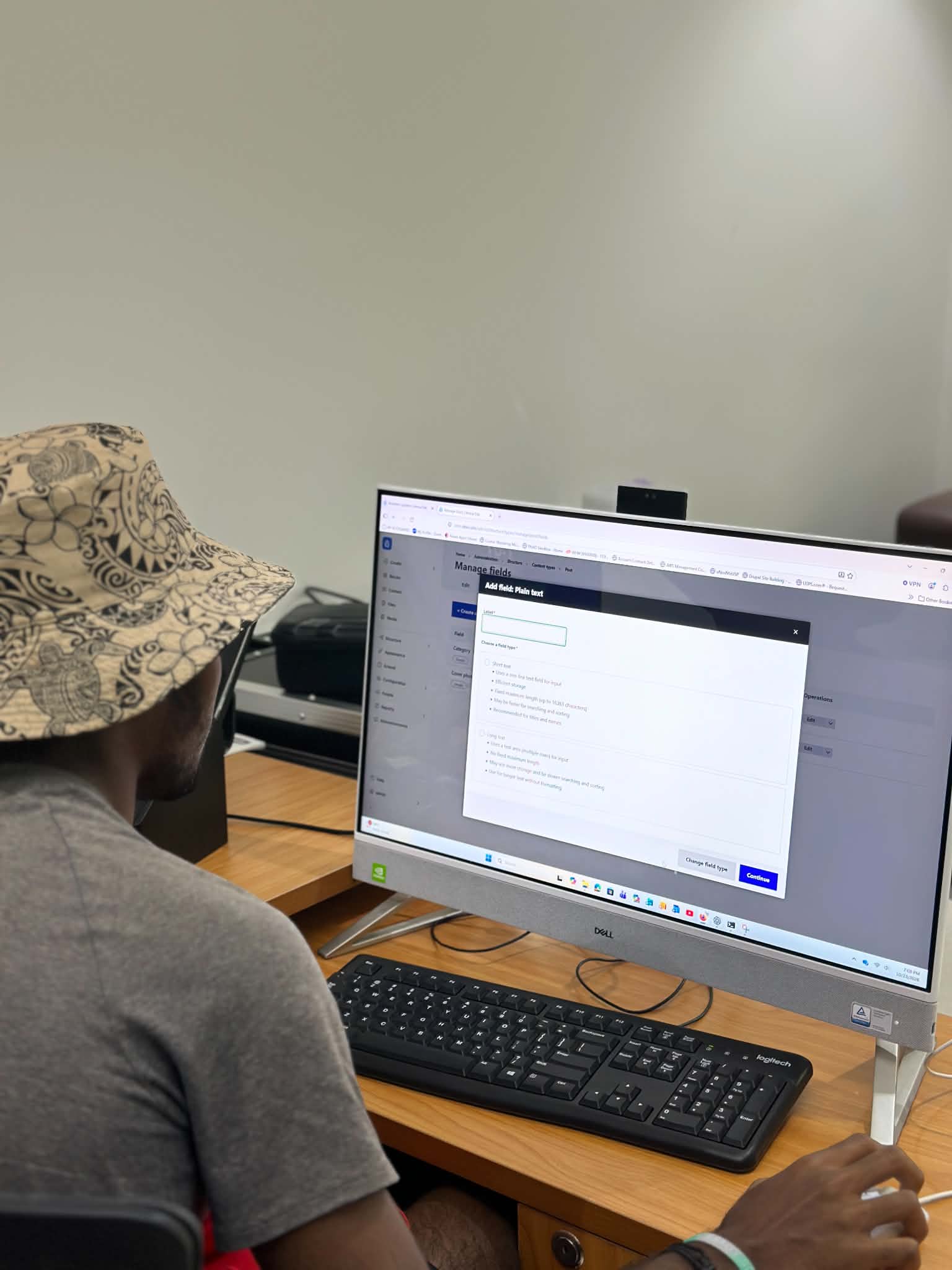
After my son successfully got his Drupal site running locally with DDEV, created content types, and wrote his first post, he turned to me and said, “Dad, our assignment was just to write HTML code like this:”
<h1>This is heading one</h1>
<p>This is a paragraph</p>
I replied, “Well, you’ve gone a little further than that now! Right-click your webpage and select ‘Inspect.’ You’ll find enough HTML there to keep you busy for a while.”
When I told him the site was freeCodeCamp, he replied, “Yes, that is the one,” but it was too late because I had already drupalized him.
Add new comment